Overview
A Composed Entity is a unified Entity that represents a real-world object (person or organization) and embeds other Entities inside it.
To get a Composed Entity, you need to run any Transform within two Transform sets:
- Deep Dive - Facebook
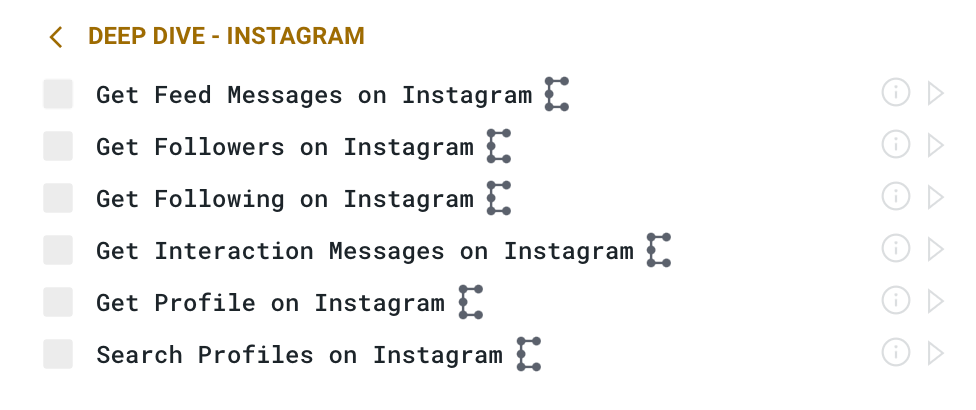
- Deep Dive - Instagram
- Deep Dive - Linkedin
- Deep Dive - Telegram
- Deep Dive - TikTok
- Deep Dive - Weibo
- Deep Dive - X/Twitter
- Deep Dive - Youtube
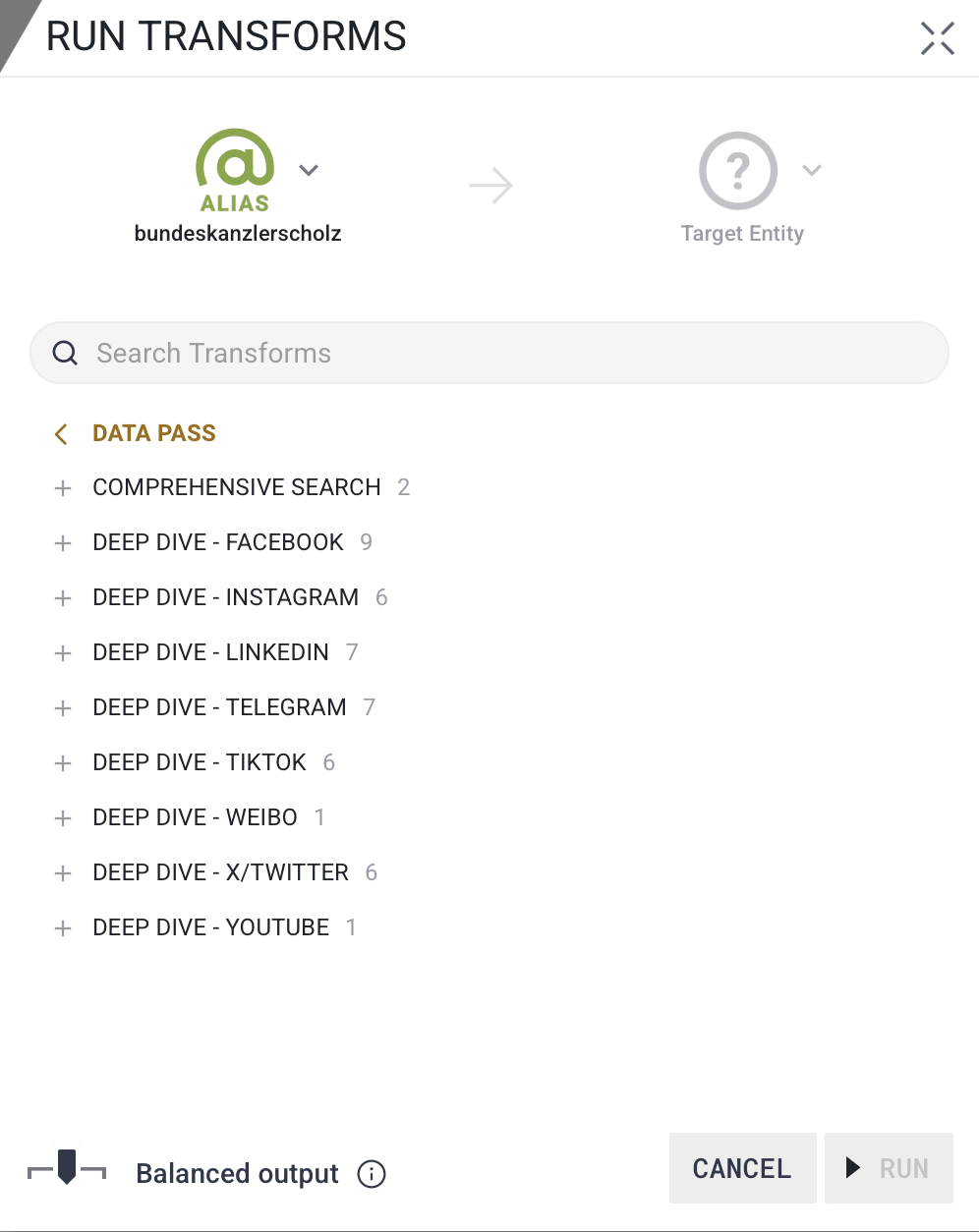
Transforms that can display Composed Entities as a result are marked in the UI with a special icon next to the Transform name.
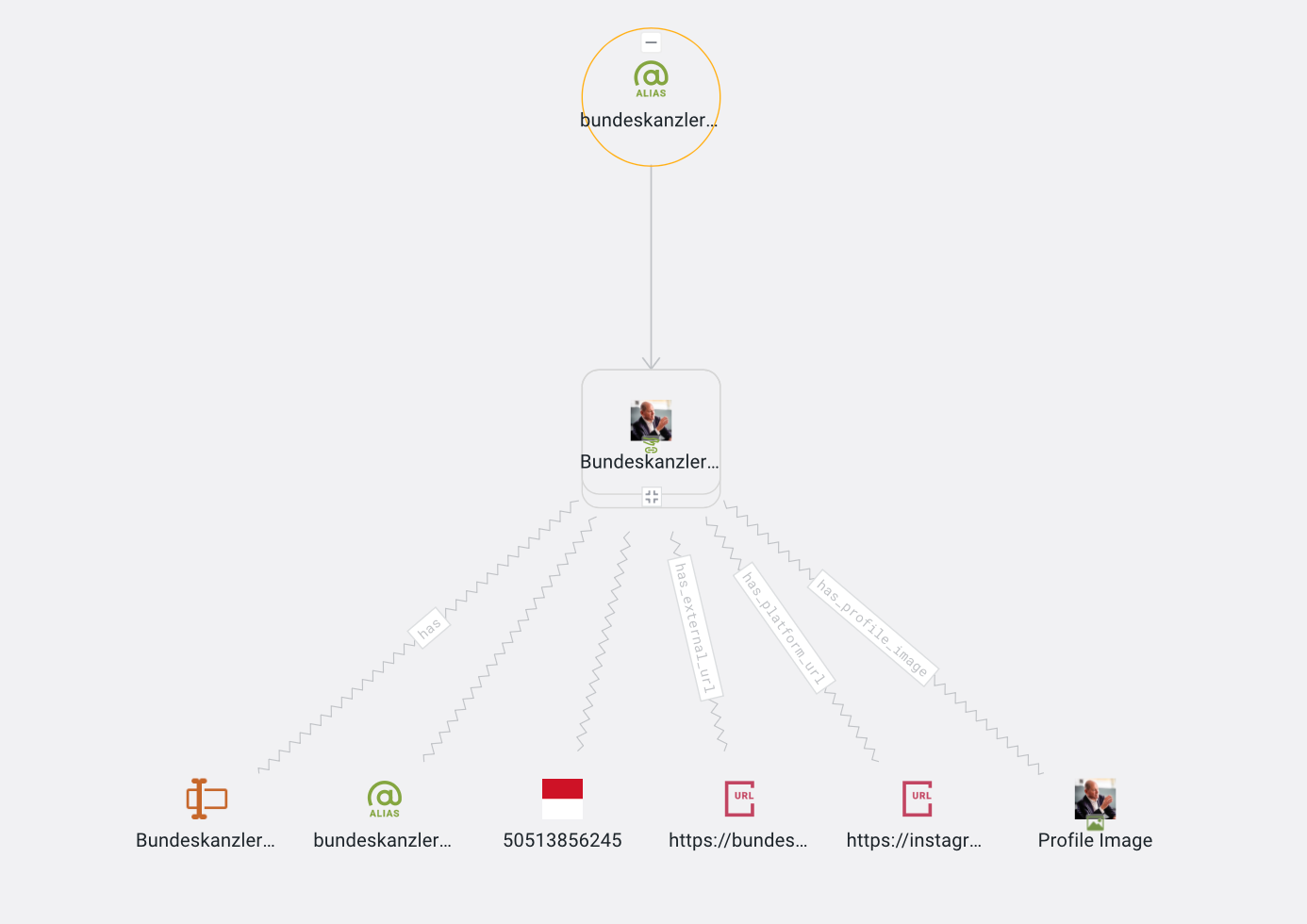
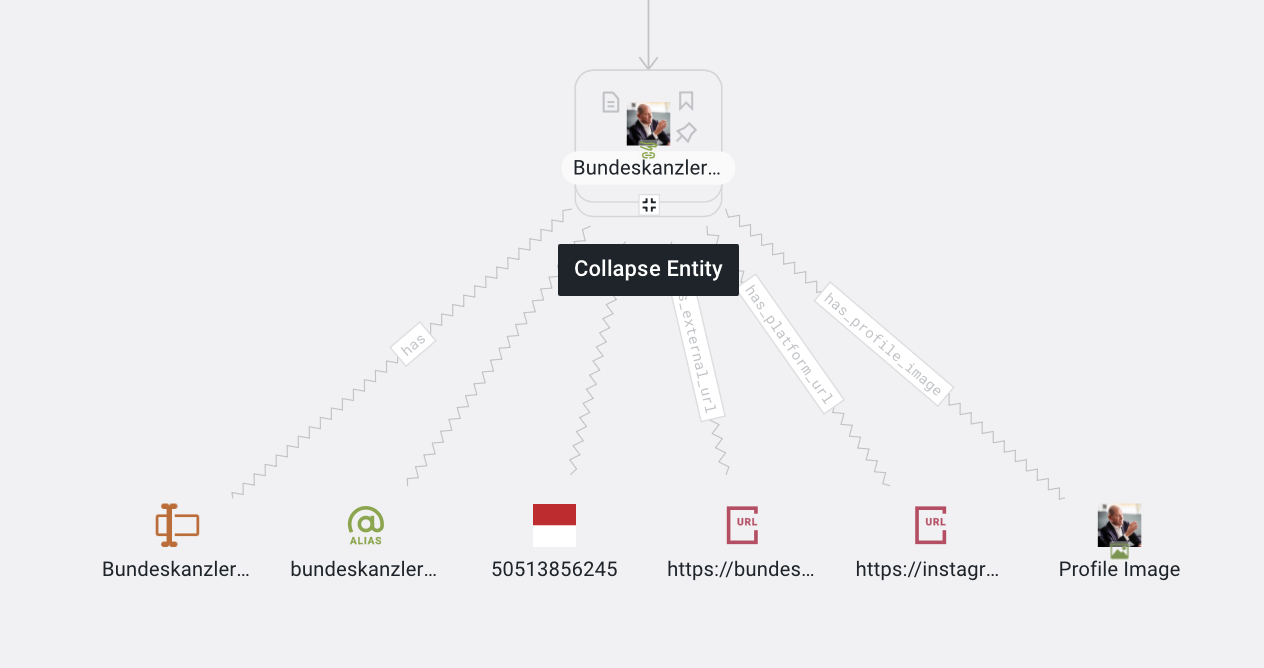
- A parent Composed Entity (e.g., Composed Profile)
- One or more Embedded Entities (e.g., Name, Alias, Email, Phone Number)
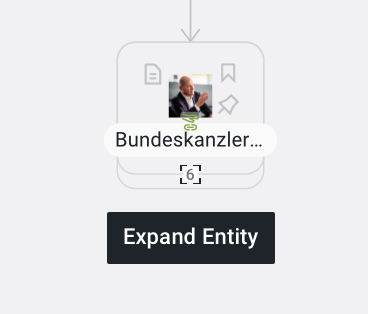
To hide the expanded view, click on Collapse Entity at the top of the Entity icon.
 .
.
Running Transforms on Composed Entities
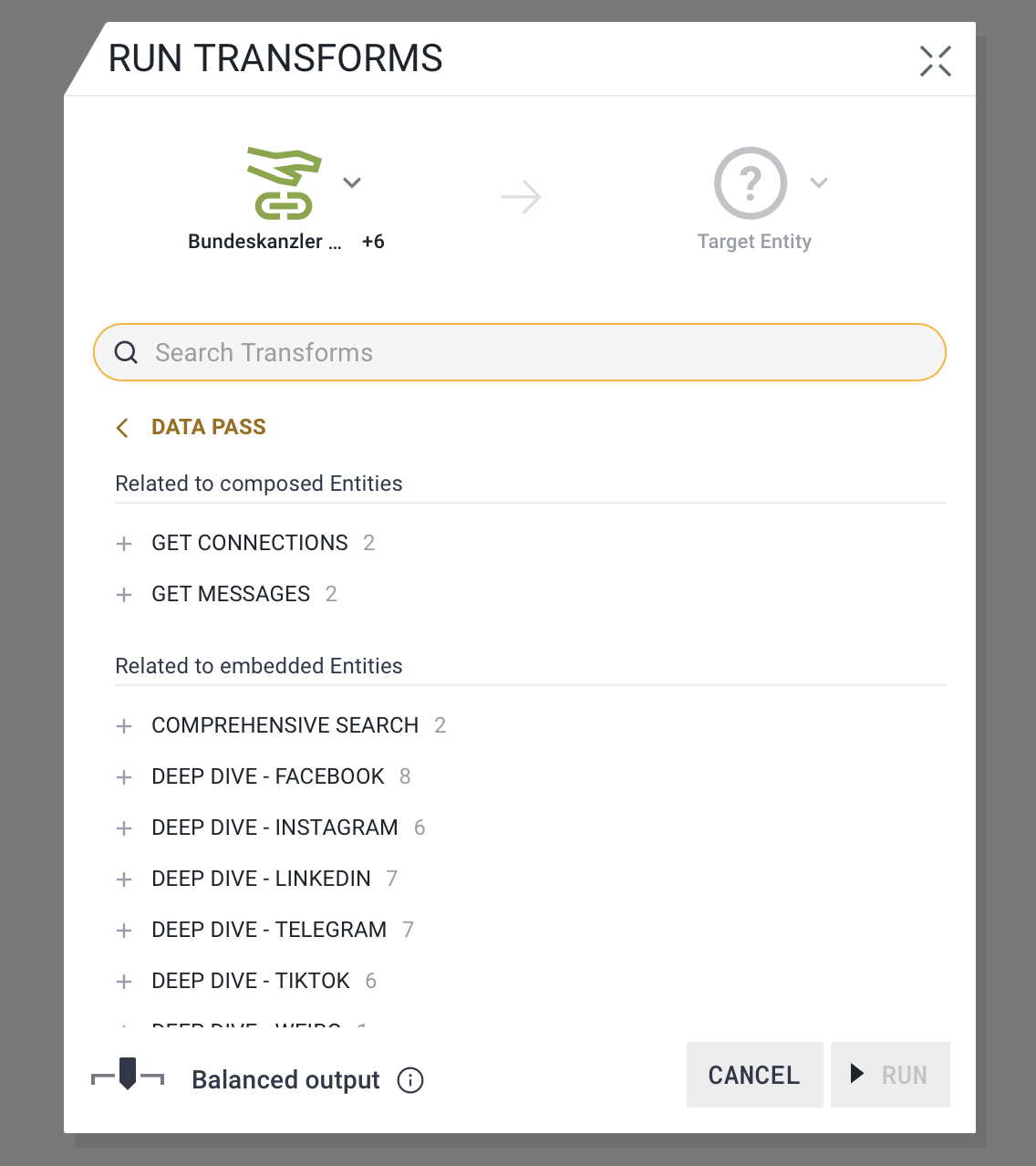
Available Transforms are automatically tailored based on available data, making it quicker and easier for users to choose the right action. By default, the Transform Menu shows Transforms applicable to the Composed Entity type. Running the Transform on the Composed Entity will execute it on all Embedded Entities within the Composed Entity.
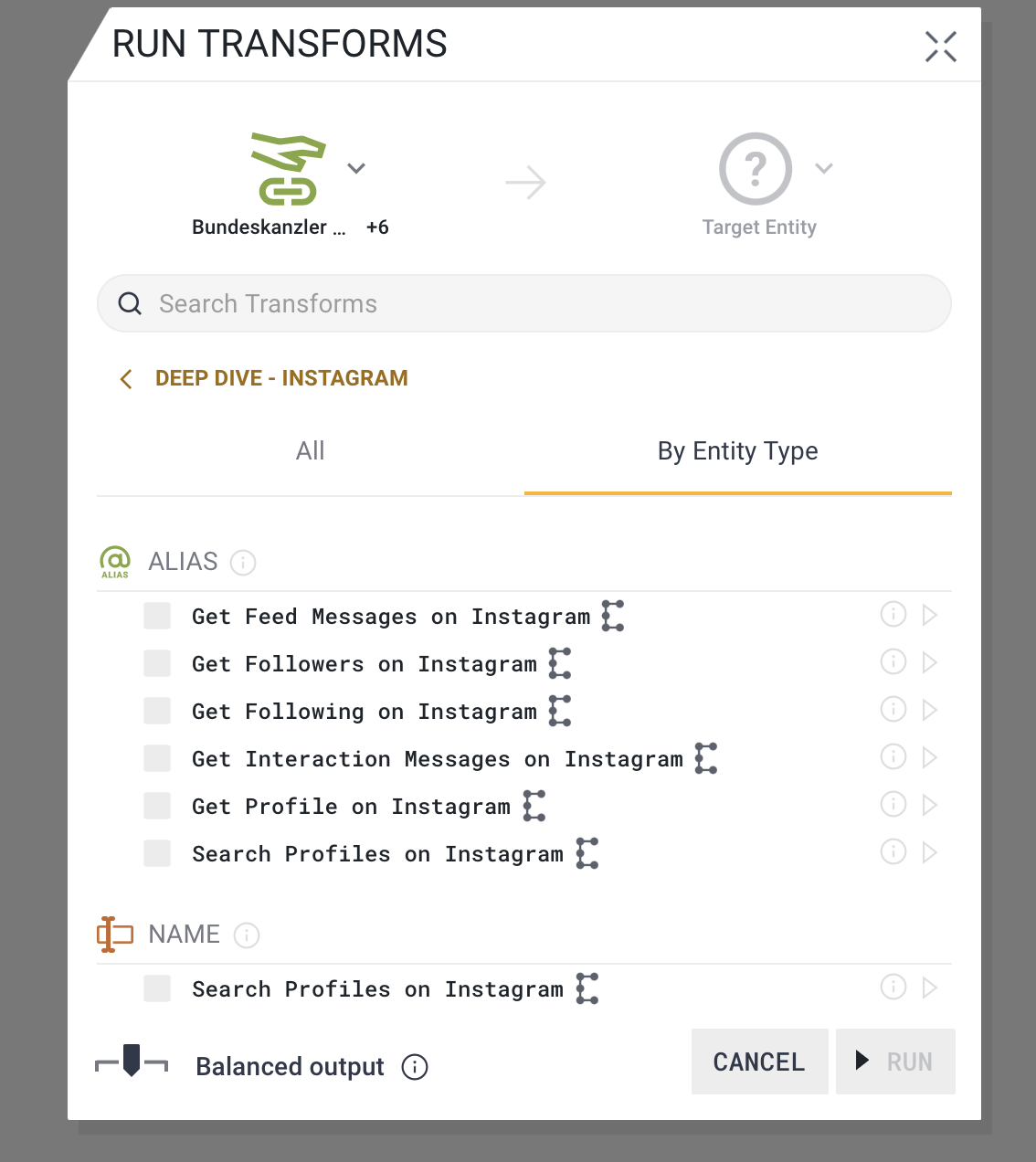
Advanced users with more precise needs can choose to expand the Composed Entity and run Transforms on Embedded Entities nested within. Available Transforms will change in this case based on the Entity type and Property rules within those Entities. For example, a user can run Transforms to get posts only from Instagram by running the appropriate Transform on the Instagram Embedded Entity instead of the Composed Entity.
Available Transforms
The table below outlines the Transforms available to run on Composite and Embedded Entities.
The Name column refers to the Transform name on the back-end.
The Display Name column refers to what the Transform is called in the Graph (Browser) interface upon right-clicking on the Entity.
The Description column explains how the Transform functions.
The Sets column refers to the Transform Set a particular Transform can be found in upon right-clicking within the Transform Menu.
The Input column refers to the Entity name on the back-end of Graph (Browser). Please note that the "maltego." prefix for Entity is dropped in the user interface. For example, if you are looking to paste an Alias Entity, simply select "Alias" in the Entity Palette. Vendor-specific Entities such as "maltego.vetric.FacebookPost" cannot be added from the Entity Palette. They are created as an output of Transform runs.
The Entity category column shows whether the Transform is run on the Embedded or Composite Entities.
Supported Platforms
Composition capability is supported for Instagram, LinkedIn, Twitter, Facebook, Weibo, Telegram, TikTok, and YouTube.