These steps apply to organizations with the Maltego Transforms SDK product assigned. Sharing a hosted seed URL with your organization requires the Own Data Package add-on. Without it, custom data sources are limited to localhost.
The Maltego Transforms SDK lets you build, run, and publish transform-based intelligence workflows without standing up or maintaining any server infrastructure. Organization Admins configure and assign the SDK from Maltego Admin, and anyone assigned the product can then use it to bring custom data sources into their investigations in Maltego Graph.
For Organization Admins
1. Find the Maltego Transforms SDK product
- Log in to Maltego Admin and go to Products in the left-hand menu.
- Look for Maltego Transforms SDK in the product list, alongside your other products like Maltego Graph and Maltego Search.
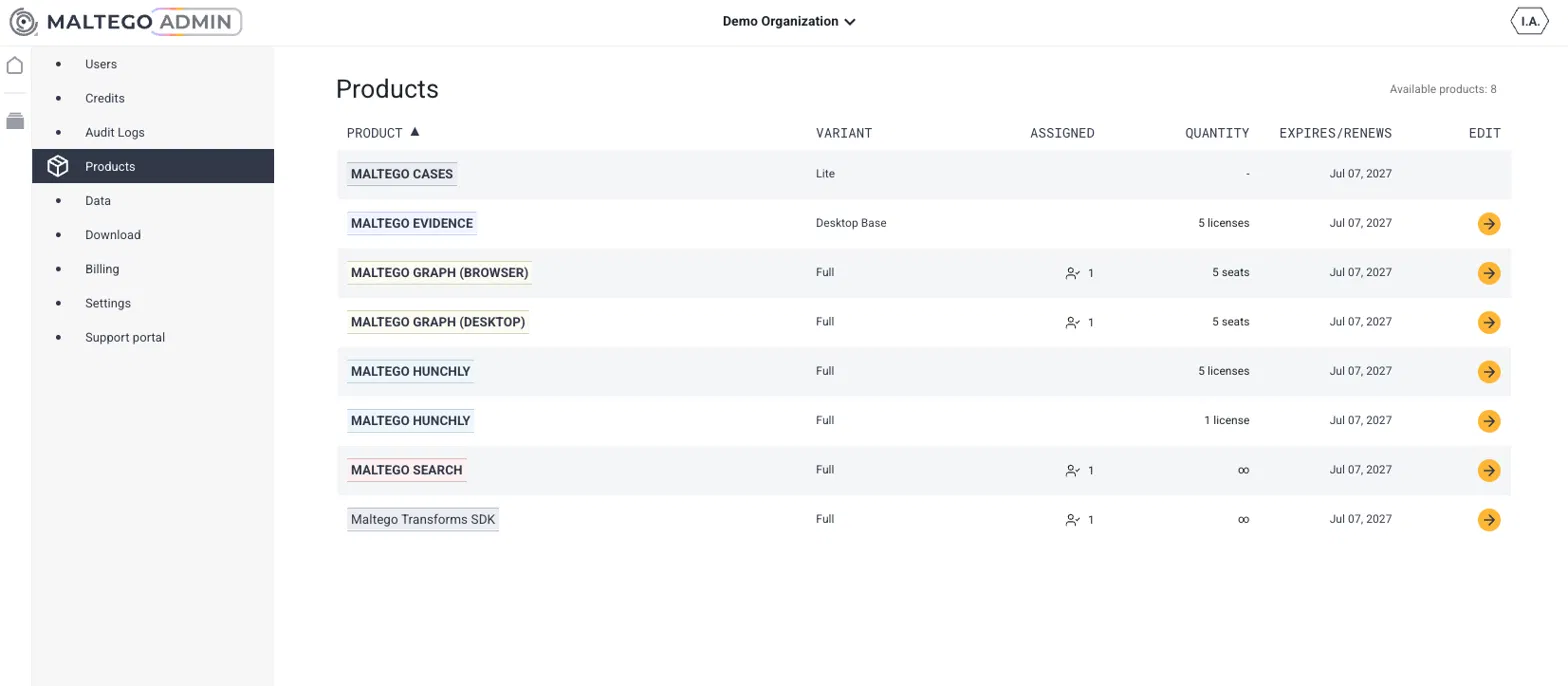
2. Configure your custom data source
Before assigning the SDK to your team, you'll need to configure it with at least one data source.
Click on Maltego Transforms SDK to open the Product Info panel.
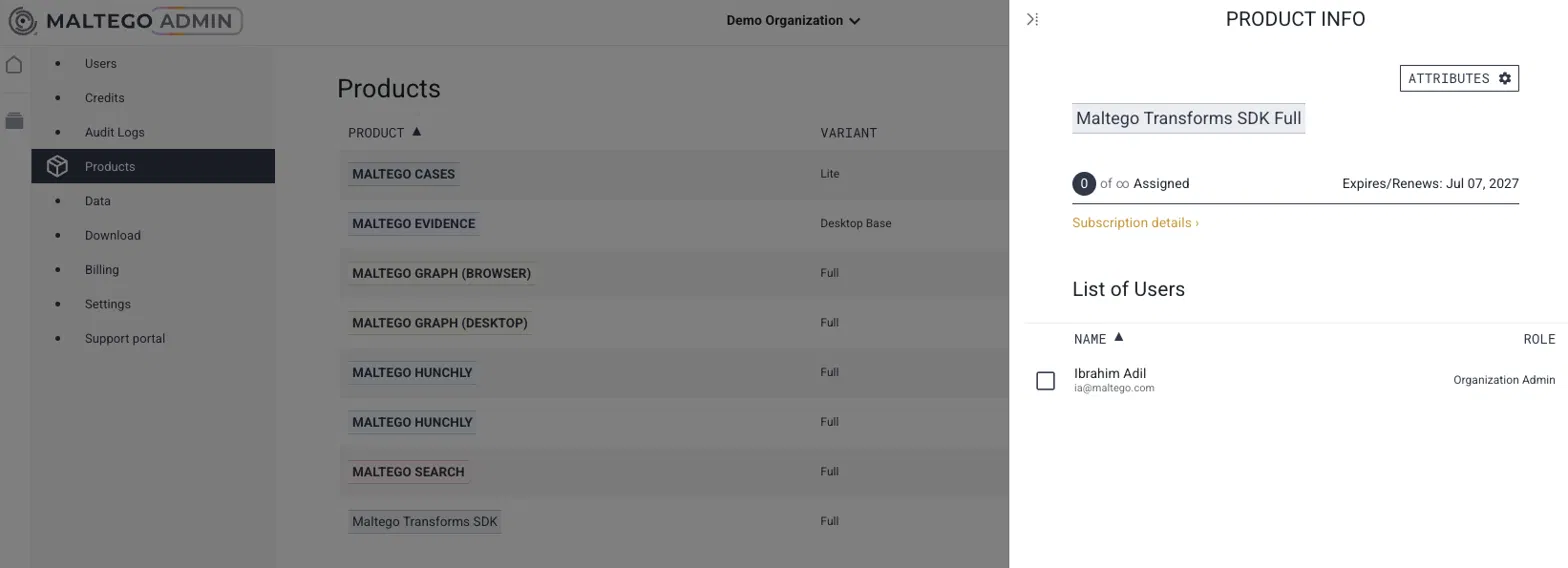
Click Attributes in the top right of the panel.
In the Product Attributes window, enter a Hub Item Name and the Maltego Transforms SDK URL for the data source you want to make available to your organization.
Click Add item if you want to configure more than one data source.
Click Save once you're done.
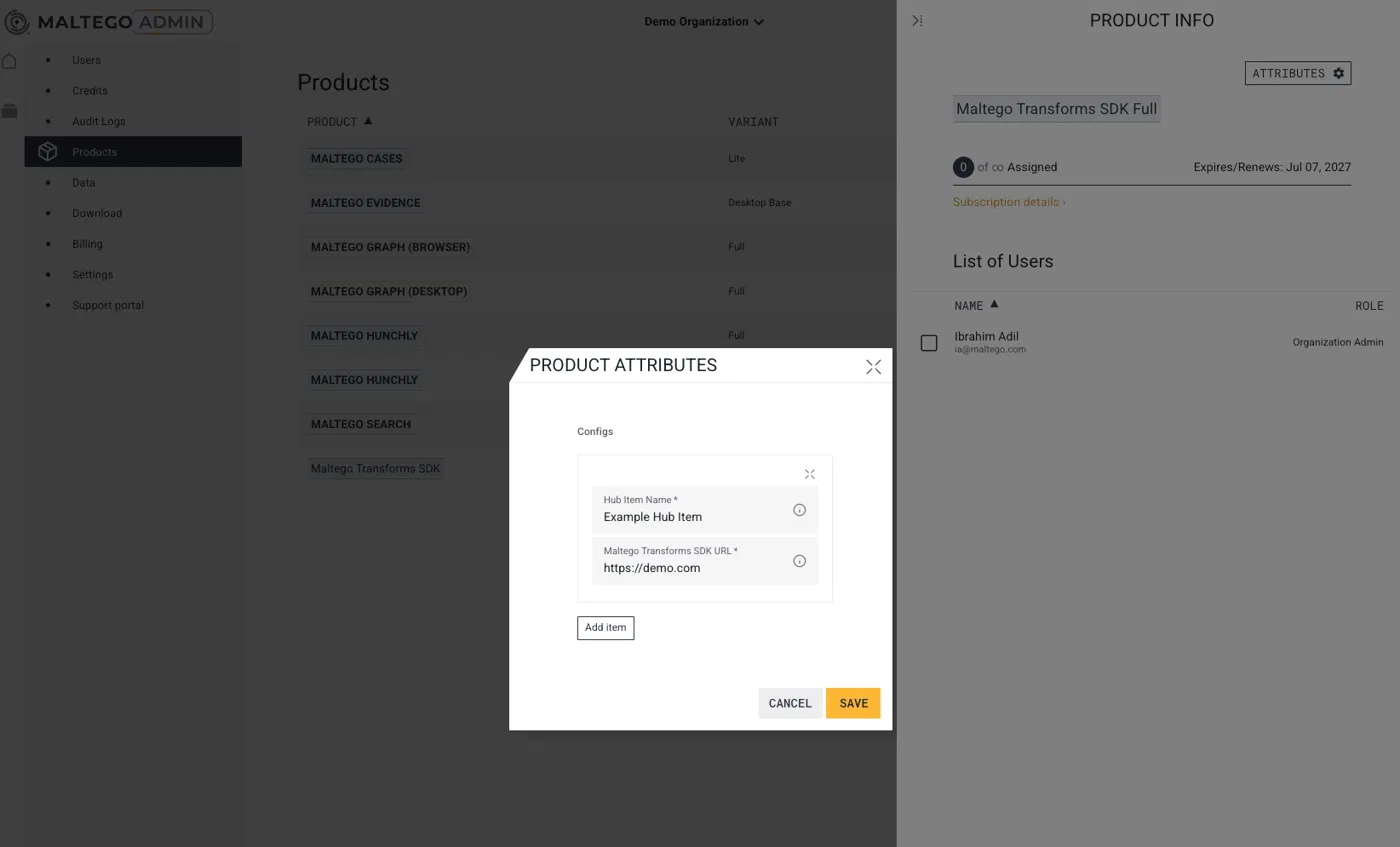
Note: Only Organization Admins can add or edit these data source configurations. Once saved, they become available to any user assigned the Maltego Transforms SDK product.
3. Assign the product to your team
From the Product Info panel, select the users you want to give access to and assign them the Maltego Transforms SDK, the same way you'd assign any other product in Products.
For Investigators
Once your Organization Admin has assigned you the Maltego Transforms SDK and configured a data source, you can use it directly from Maltego Graph.
Use your custom data source in an investigation
Open Maltego Graph (Browser) and start or open an investigation.
Go to the Data option in the left-hand navbar.
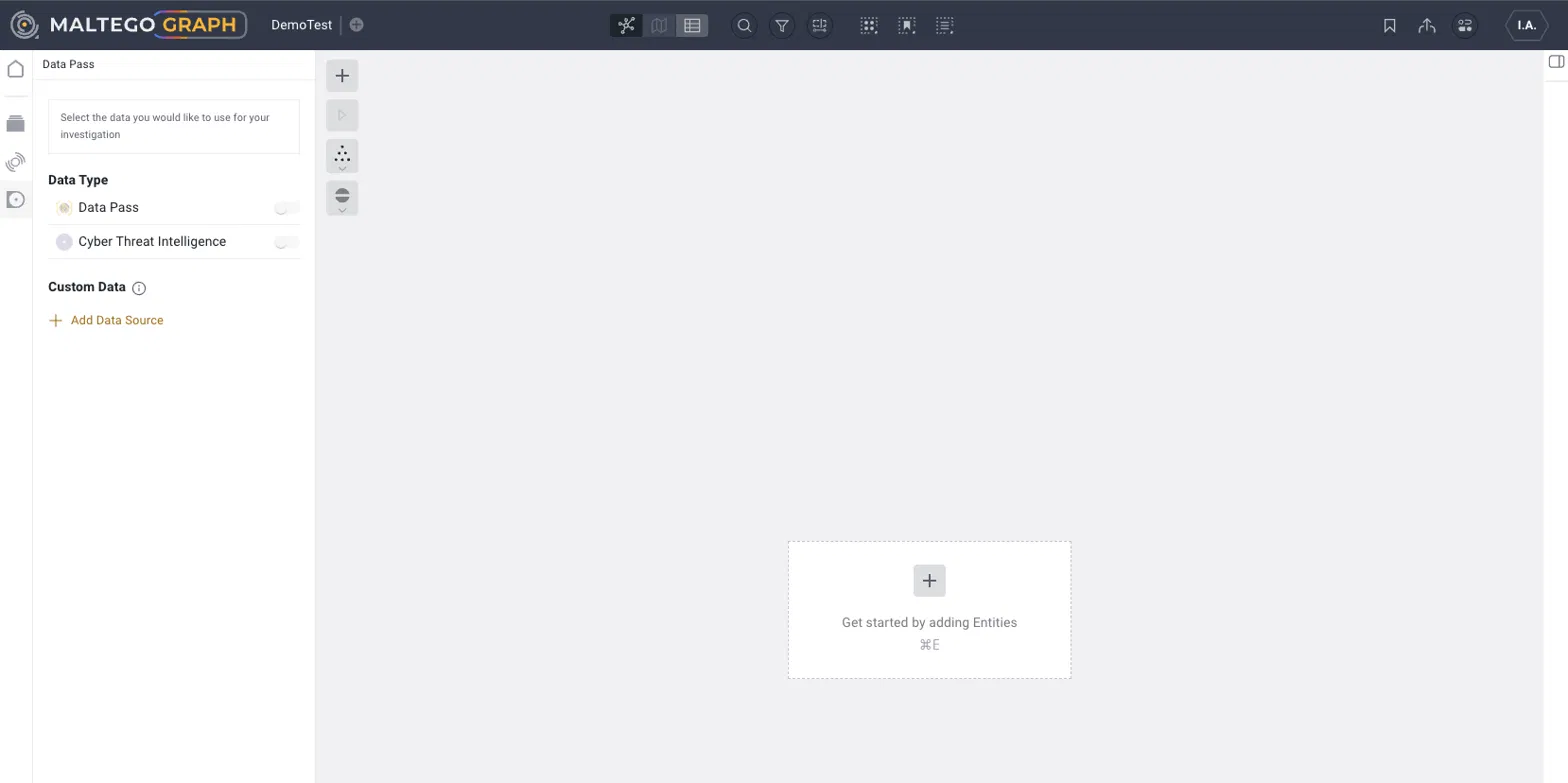
Under Custom Data, click Add Data Source.
Select the Hub Item your Organization Admin configured from the dropdown.
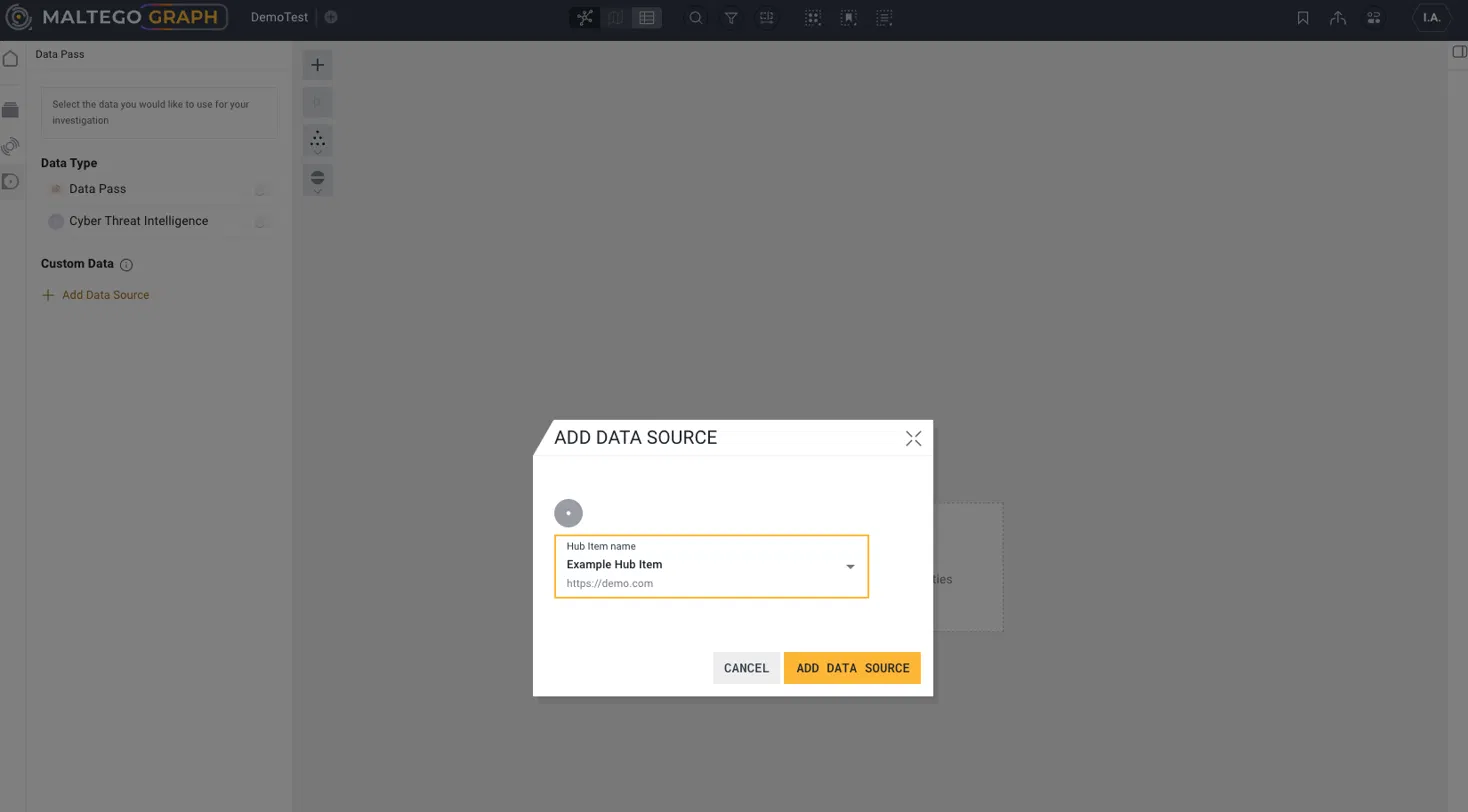
Click Add Data Source to enable it for your graph.
Once added, the custom data source behaves like any other data type in your investigation — you can toggle it on or off from the Data panel at any time.